Important: this article is intended for users of Endalia HR with Administrator profiles.
This information, found in the employee file, is of great utility as it allows for data control and evaluation of various parameters. If you want to know how to use this functionality, don’t miss these tips.
In this article, you will find:
Actions on the employee - Associate company or center
Note: the visibility of this action for HR. department, on the employee record, will be determined by Endalia. Remember, to advance through the phases in the processes, you must fill in at least the fields marked with an asterisk (*).
- Within the Organization and People Hub, go to People > Personnel Monitoring > Employees (or Externals, as it is the same functionality).
- On the screen presented to you next, select an employee from the list and click the Edit employee record button, which you'll find in the toolbar.
- Once inside the worker's record, you have a dropdown with the different actions on the employee to perform. Click on the button Associate company or center
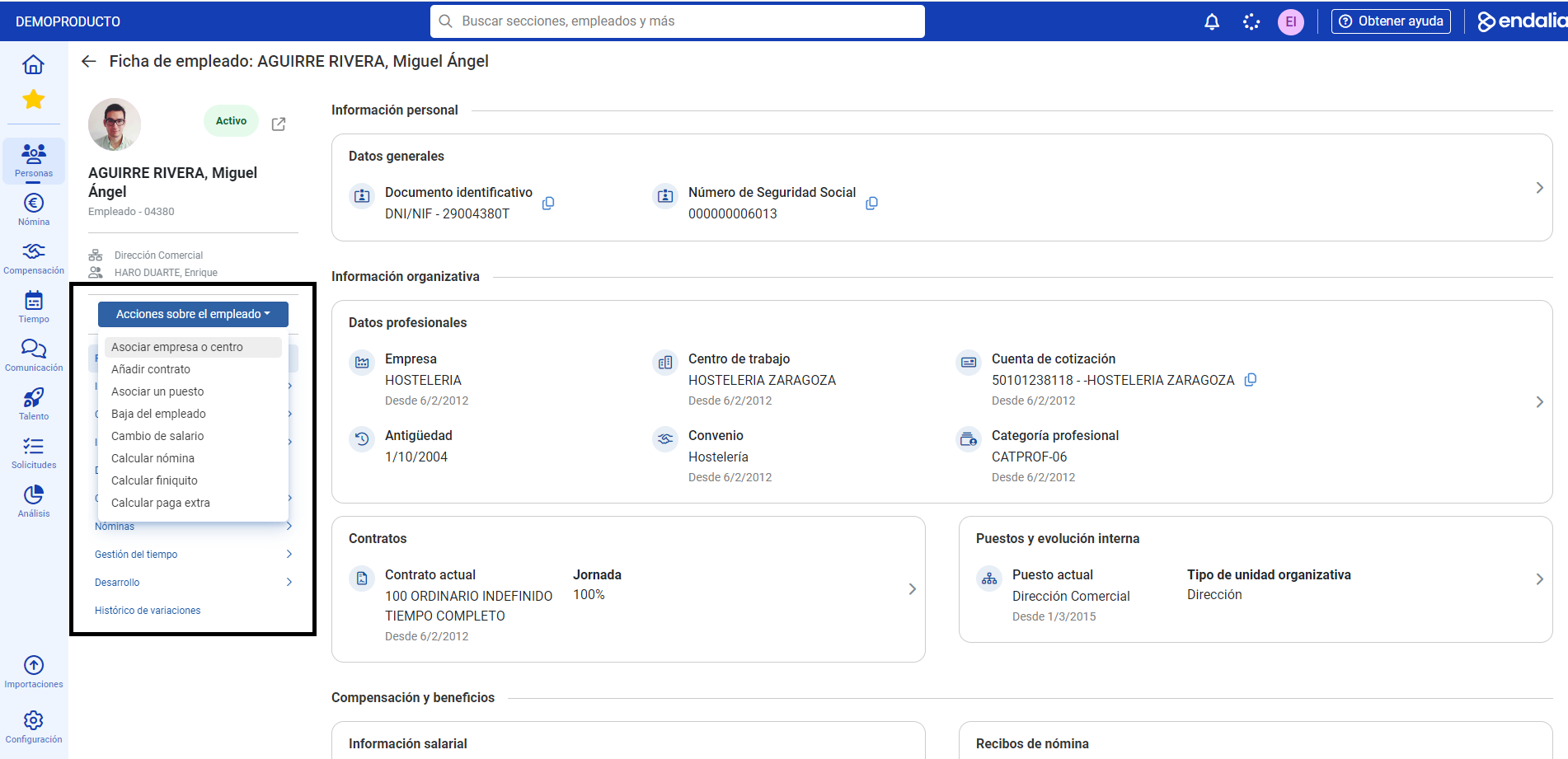
- Now, you must perform this action by completing the available steps, detailed below:
- Mandatory data: such as the application date (once entered, it will apply to the rest of the fields), and the data to modify. Note that, depending on the chosen option, either company or work center, the system will provide different alternatives. Fill in the mandatory fields and click Next. And remember: you always have the option to retrace your steps to make modifications.
- Data to review: in this step, you have the option to associate cost centers to the employee's record. Using the Add (+) button in the section's toolbar, you can add new ones with the button located in the modal window that appears. Keep in mind that the start date of variation will be the one you set in the previous step, and the total percentages must add up to 100%. To complete this step, fill out the last section, professional data, and click Next.
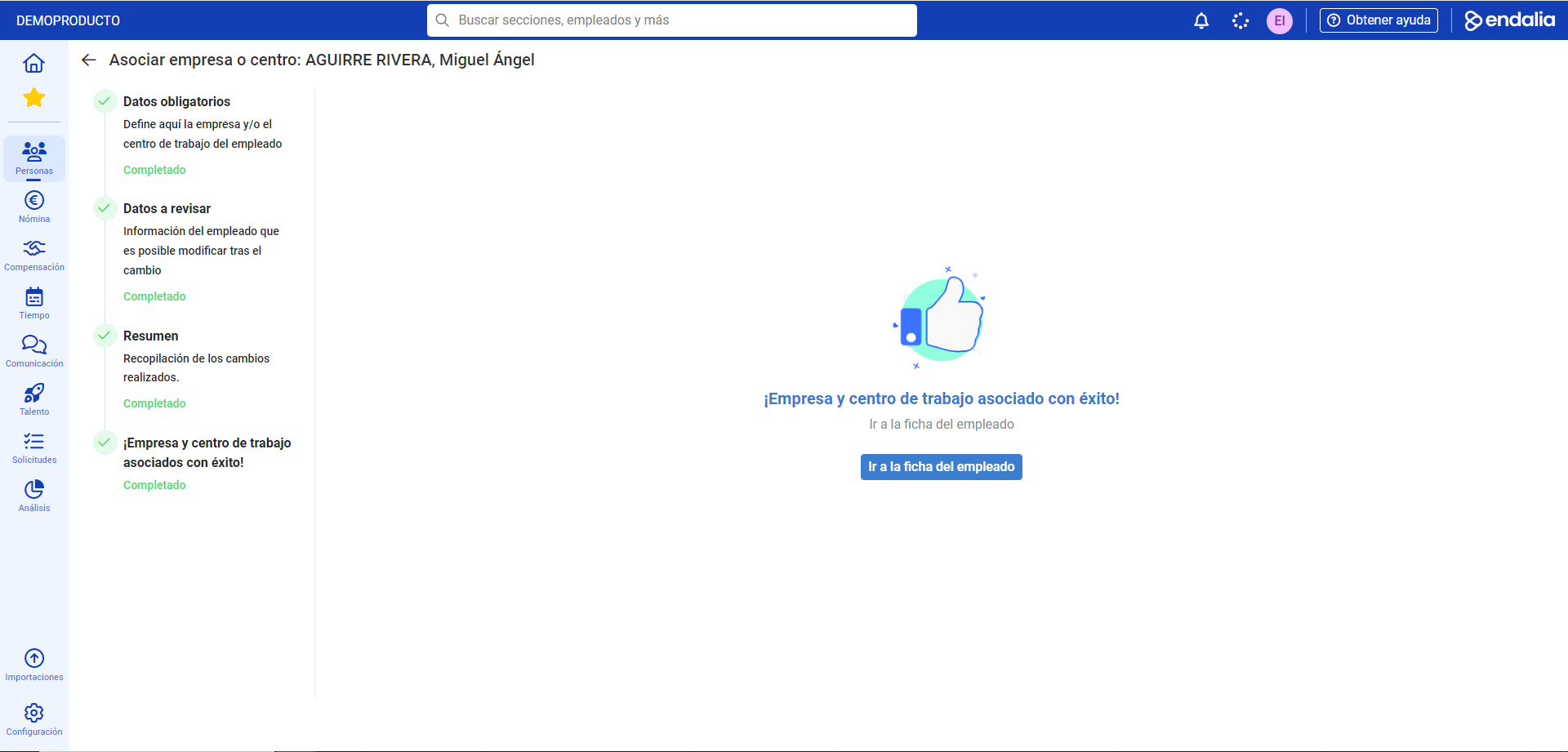
- The next step of this stepper provides a summary of the selections previously made. To consolidate them, click Associate company and center. The confirmation message will confirm that the changes have been saved correctly, and you can return to the initial page of the employee record using the corresponding button to view the information you just entered into the system.
Note: The Back - Next buttons will allow you to retrace your steps and move forward at any time without losing the entered information.
Process video
Do you have questions? Check out this small informational pill:
Want to know more? Check the following related articles:
If you have doubts about the terms, take a look at our glossary at this link.
Was this article helpful?
That’s Great!
Thank you for your feedback
Sorry! We couldn't be helpful
Thank you for your feedback
Feedback sent
We appreciate your effort and will try to fix the article