Important: this article is aimed at Endalia HR users with an Administrator profile.
Manage new training action requests and create training actions based on employees' identified needs.
What flow does a training request follow?
As an HR administrator, you manage requests in the Processing phase (last step of the flow):
- Collaborator: Requests creation of a new training action
- Responsible: Validates the request (confirms it is pertinent for the collaborator) (optional)
- HR (you): Process the request (finalize details and approve/reject)
You can adjust the global configuration, or configure the phases of the request from Settings > Requests > Request Settings, "Training" tab.
How do I manage training requests?
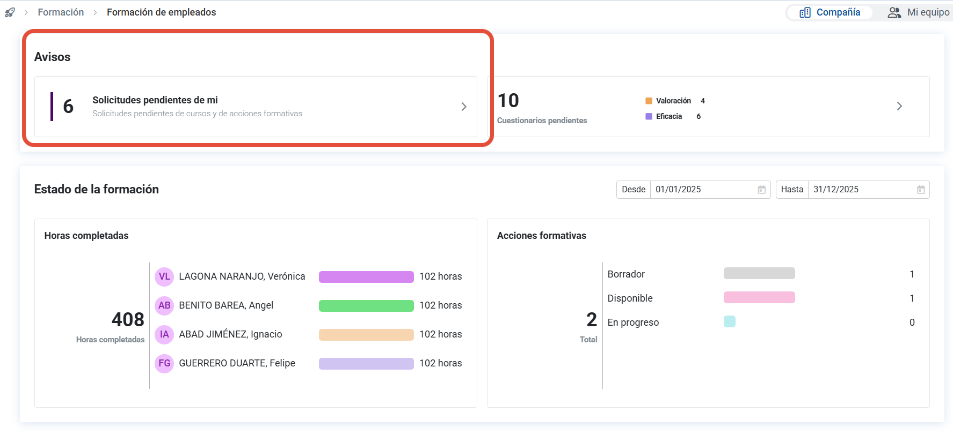
- Option 1: Inside the Talent hub, navigate through Training > Employee Training. On the screen presented to you, you have a list, in the notices section, of actions pending to be managed. Click on it to access the full list.
- Option 2: From the home, look for the Requests widget.

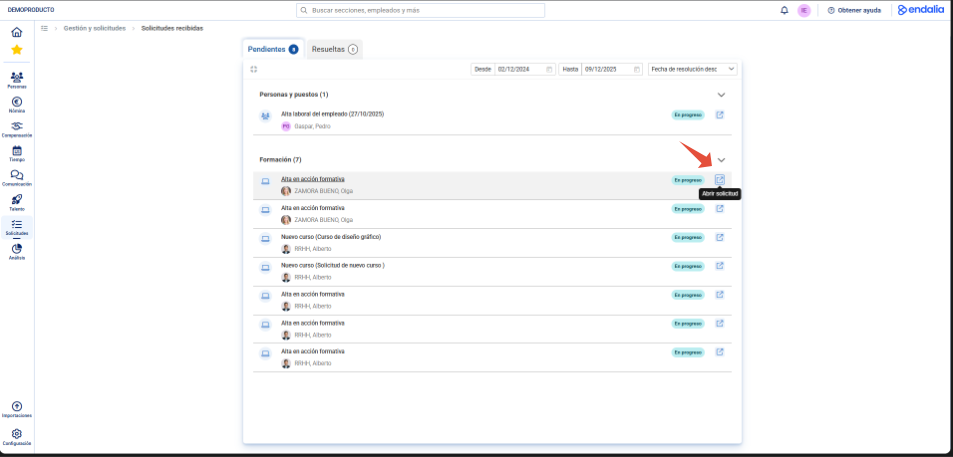
Now, in received requests, go to the Training section. Next, find a training action to manage and click on the Open request button, located on the right side of the screen:
The Validation of the training action screen shows you the progress of the request, in this case, in Processing (last step of the process, as the responsible of HR. HR). Go to the Training Action Settings section and fill in the Visibility. Press Save and continue and, again, confirm in the modal window message.

- If this is a new course request: The course is automatically created in "Inactive" status.

- If it is a request to enroll in a training action: The employee is enrolled as a participant in the training action.
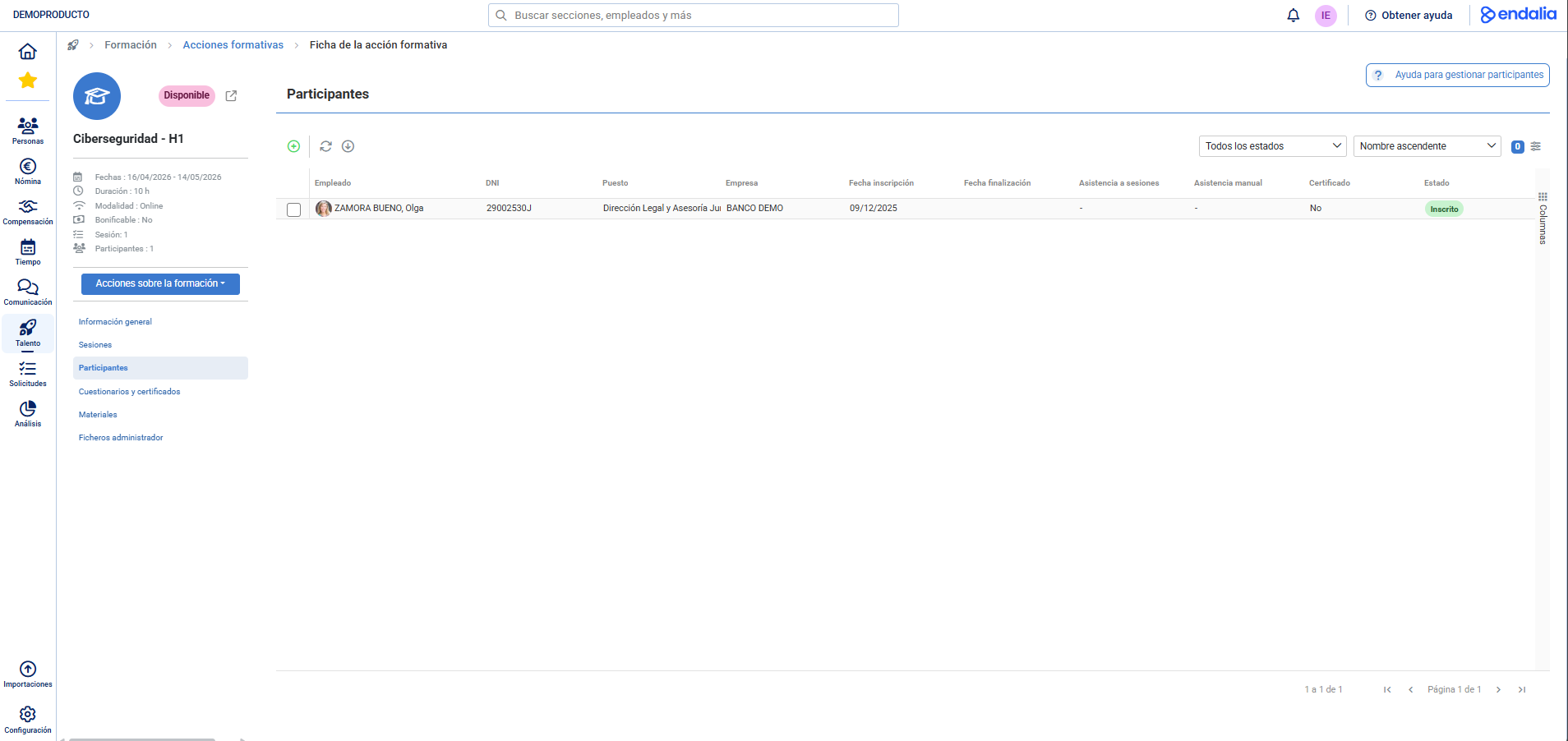
Note: All requests, whether approved or rejected, will become part of the Resolved tab within Received Requests.

You might also be interested in:
Additionally, you can view our glossary, available at this link.
Was this article helpful?
That’s Great!
Thank you for your feedback
Sorry! We couldn't be helpful
Thank you for your feedback
Feedback sent
We appreciate your effort and will try to fix the article