Important: this article is intended for Endalia HR users with a Collaborator profile.
Once the training action is completed, it is necessary to know first-hand the participant's degree of satisfaction with it. Check out these lines to answer the questionnaires in simple steps.
Next:
Respond to an evaluation questionnaire
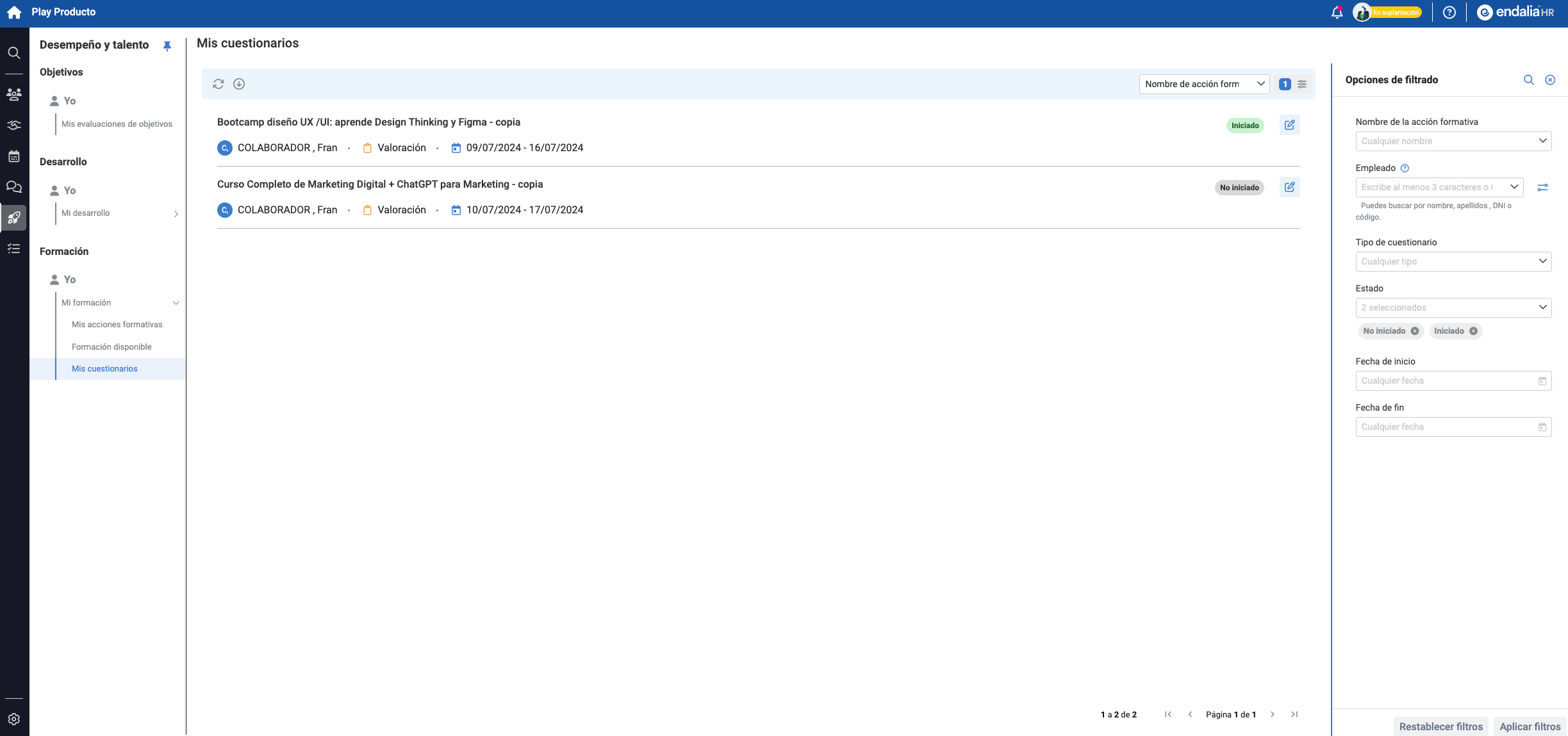
Within the Performance and Talent hub, go to the Training module > Me > My Training > My Questionnaires
- On this screen, you can see both the questionnaires and their current status. Click on the Edit button, located to the right of the screen, within each questionnaire and next to its status, to access the questions:
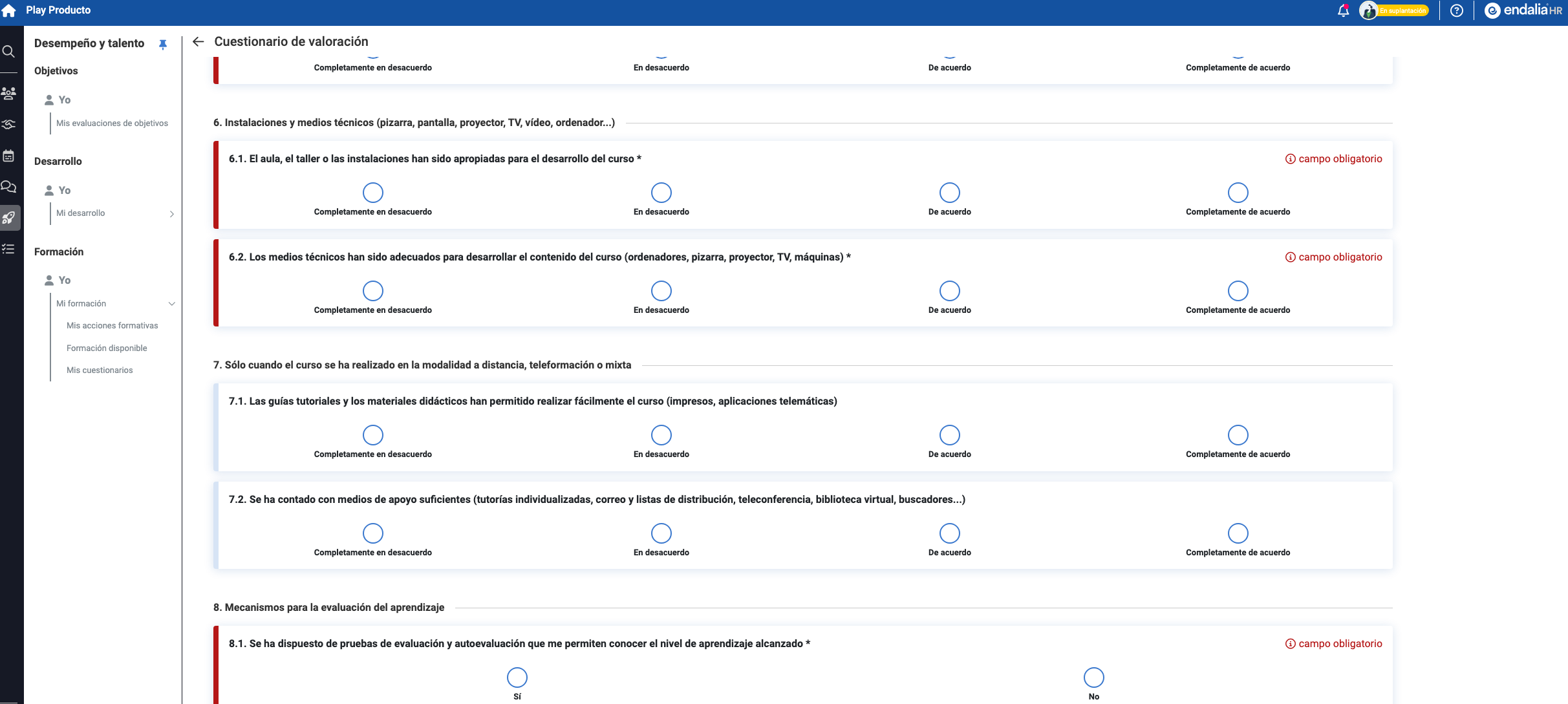
- Once inside the questionnaire, you can proceed to complete it. Keep in mind that there are mandatory fields that you must fill in, and other optional questions. The Save button at the end of the questionnaire allows you to save your answers partially and complete them later. Once you have filled in the mandatory responses, the Finish option, located next to the mentioned Save button, will be available. This allows you to close and submit the questionnaire. Now, this process will appear as Completed on the main screen, My Questionnaires:
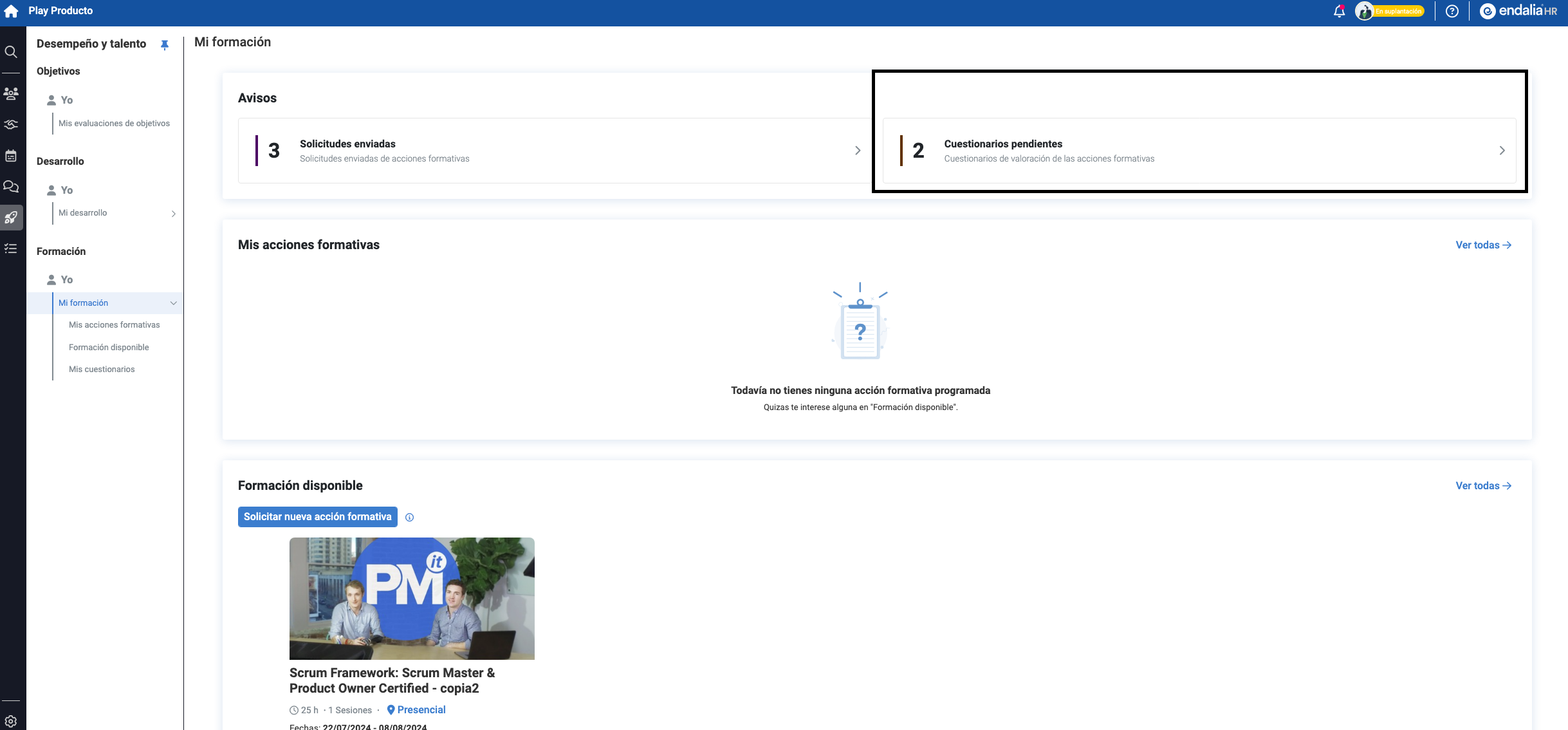
Note: You can access the evaluation questionnaires through different means: 1. Via the home, from Requests:2- With the route Performance and Talent > Training > Me > My Training:
You might be interested:
Additionally, you can view our glossary available at this link.
Was this article helpful?
That’s Great!
Thank you for your feedback
Sorry! We couldn't be helpful
Thank you for your feedback
Feedback sent
We appreciate your effort and will try to fix the article