From Endalia HR, we help you with the selection and implementation of your physical device! 


In this article, we recommend some examples for selecting the best option for your company, explaining what features a Time-Tracking Kiosk should have, which devices are more suitable, and how to configure them to ensure efficient and secure time registration.
In this article:
1. Deployment Recommendations
When using Kiosk-type devices for time registration, we have two possibilities: Use managed devices (controlled by the company) or unmanaged devices.
Unmanaged Devices
In this case, the devices are not centrally managed, thus requiring on-site maintenance at each of the Kiosks.
Here are some tips for managing them:
Step 1: Enable Screen Pinning
- Open the tablet's settings.
- Go to Security and Privacy (or Security on some Android versions).
- Look for the Screen Pinning option (it may be in Advanced or More Security Settings).
- Activate it and ensure the Require PIN before unpinning option is also enabled.
Step 2: Pin the Application
- Open the application you want to pin.
- Press the Recent button (square in the navigation bar or slide up and hold on some devices).
- In the recent apps view, find the window of the app you want to pin.
- Tap the app icon at the top of its preview.
- Select Pin (or "Pin this app" on some Android versions).
- The app will be locked on the screen and can't be exited without unlocking.
Managed Devices
These are under an EMM (Enterprise Mobility Management) / MDM (Mobile Device Management) system. They offer the advantage of centralized management, avoiding the need to visit each Kiosk for management.
You can check with the IT department if the organization already has a device management system.
Once confirmed that the device is enrolled under this system, it must be configured in Kiosk Mode as follows:
- Single App Mode: Only one application is allowed to run at a time. It would be the only application available on the device for simultaneous use.
- Automatic updates activated.
- Boot Start: This starts the application as soon as the tablet powers on.
 Necessary information to configure Endalia Kiosk in your EMM/MDM:
- App Bundle: com.endalia.mobile.kiosko
2. Physical Installation of the Kiosk
Once the physical device for time registration at Kiosk is selected, it is vital to define how and where to install it to ensure accessibility, security, and durability. There are two main anchoring options:
- Wall Mount:
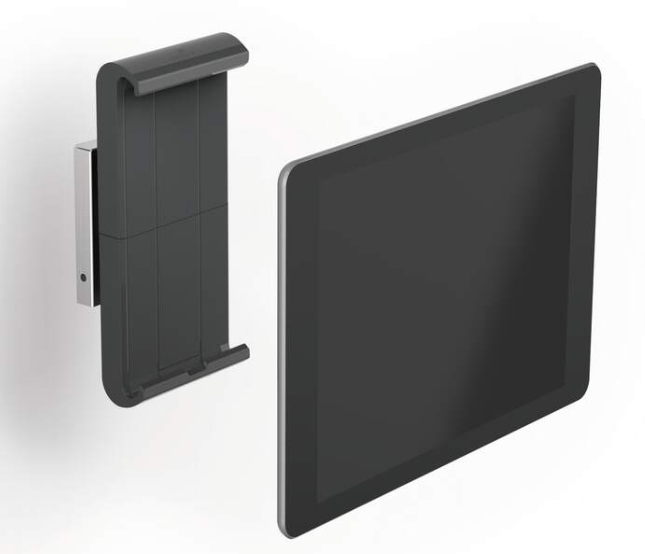
Ideal for confined spaces or when a fixed and secure installation is sought. It's an excellent choice for offices, factories, or high-traffic areas. - Pedestal or Stand Support:
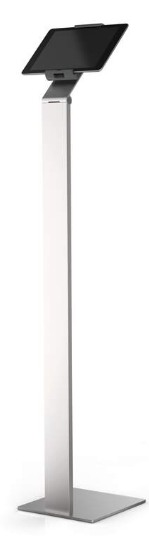 Offers location flexibility and mobility, useful in environments where the space layout may change or in areas without nearby walls for fixation.
Next, we'll explore examples of pedestal and wall mounting manufacturers, although you can research more :
:
https://www.durable.com.es/es_ES/productos/equipamiento-de-oficina/soportes-de-tablet/
https://www.bravour.com/es/todos-los-soportes-para-tabletas
We hope this article has helped you understand the available options and make an informed decision. If you have questions or need additional advice, don't hesitate to contact us.
Was this article helpful?
That’s Great!
Thank you for your feedback
Sorry! We couldn't be helpful
Thank you for your feedback
Feedback sent
We appreciate your effort and will try to fix the article