Important: this article is intended for Endalia users with an Administrator profile.
In each organization, positions can be in different statuses depending on their validity: some remain active, while others are moved to historical after a restructuring or temporary closure. Learn to manage the status of your positions in this article.
Change the status of a historical position
Within the People and Positions hub, navigate to Positions > Organizational Structure.
- Check the box of the position you wish to convert to historical, or click on the corresponding row.
- Next, click the More options button located on the toolbar and select Move to historical.
- In the confirmation modal window, you can decide what to do with the position's dependencies and set the end date of the position's validity. You have two options:
- Move to historical also its descendant positions: the system will move the selected position to historical along with its entire subordinate structure.
- Move to historical only the selected position: only the chosen position will be moved without affecting dependent positions.
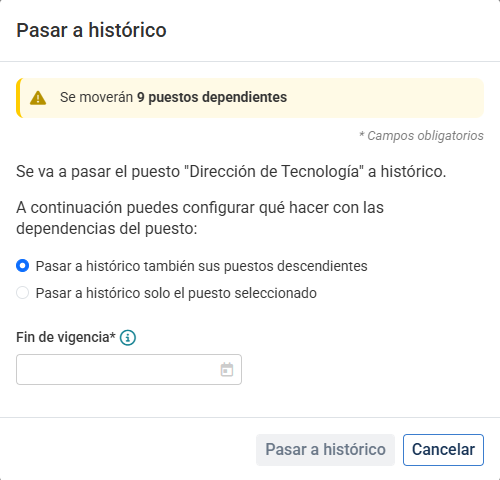
- Click Move to historical to complete the process.
Once done, the position or positions will appear on the Historical Positions tab on the selected end date.
Note: You can also perform this action from the position's record, under Actions on the position.

Restore a position to active status
If you need to reactivate a position that is historical, follow these steps:
Access the Historical Positions tab within the organizational structure.
Check the box or click on the row of the position you want to reactivate.
Click the Move to active button located on the toolbar.
In the modal window, select the location of the position within the organizational structure and enter the validity start date.
If the date you enter is not current or belongs to the future, the position will automatically appear on the Future Positions tab.
Confirm the action by clicking Move to active.
The position will once again be available in the structure tree, retaining its information associated with the indicated date.
Related articles
Want to know more? Check out the following related articles:
If you have questions about the terms, take a look at our glossary at this link.
Was this article helpful?
That’s Great!
Thank you for your feedback
Sorry! We couldn't be helpful
Thank you for your feedback
Feedback sent
We appreciate your effort and will try to fix the article