Important: this article is intended for Endalia users with an Administrator profile.
The new Time Registration Policies functionality allows you to centrally configure how and from where your employees can clock in. Here, you will find all the information to manage your policies, assign employees, and review historical changes.
In this article
Access and general navigation
Location: Main menu → Time Registration Policies.
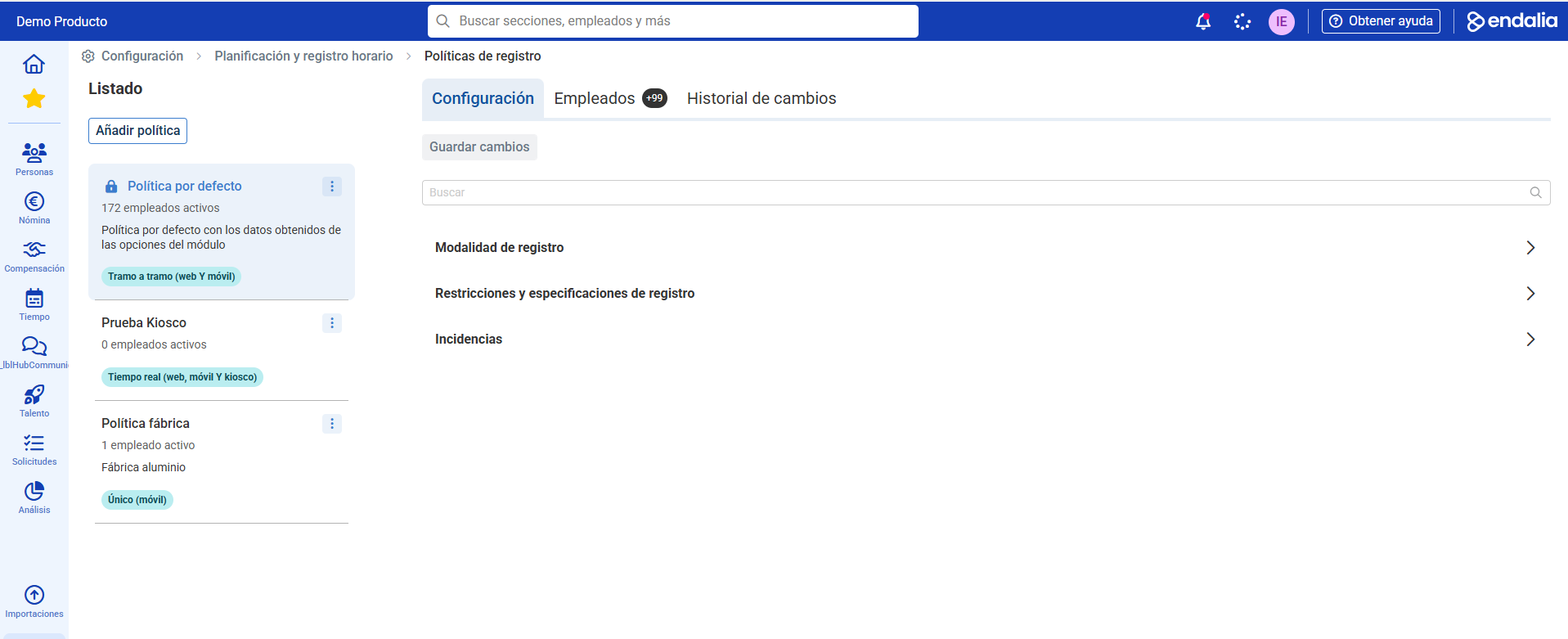
Left pane: List of all existing policies with summarized data (name, mode, allowed interfaces, number of active employees).
If there are no policies, a default policy is automatically displayed.
From here, you can create a new policy (button "+ Add policy").
Right pane: Detail of the selected policy, organized into three tabs:
Configuration
Employees
Change history
Create or duplicate a policy
When clicking "+ Add policy" a modal opens with these mandatory or optional fields:
Policy name (mandatory)
Brief description (optional, maximum 250 characters)
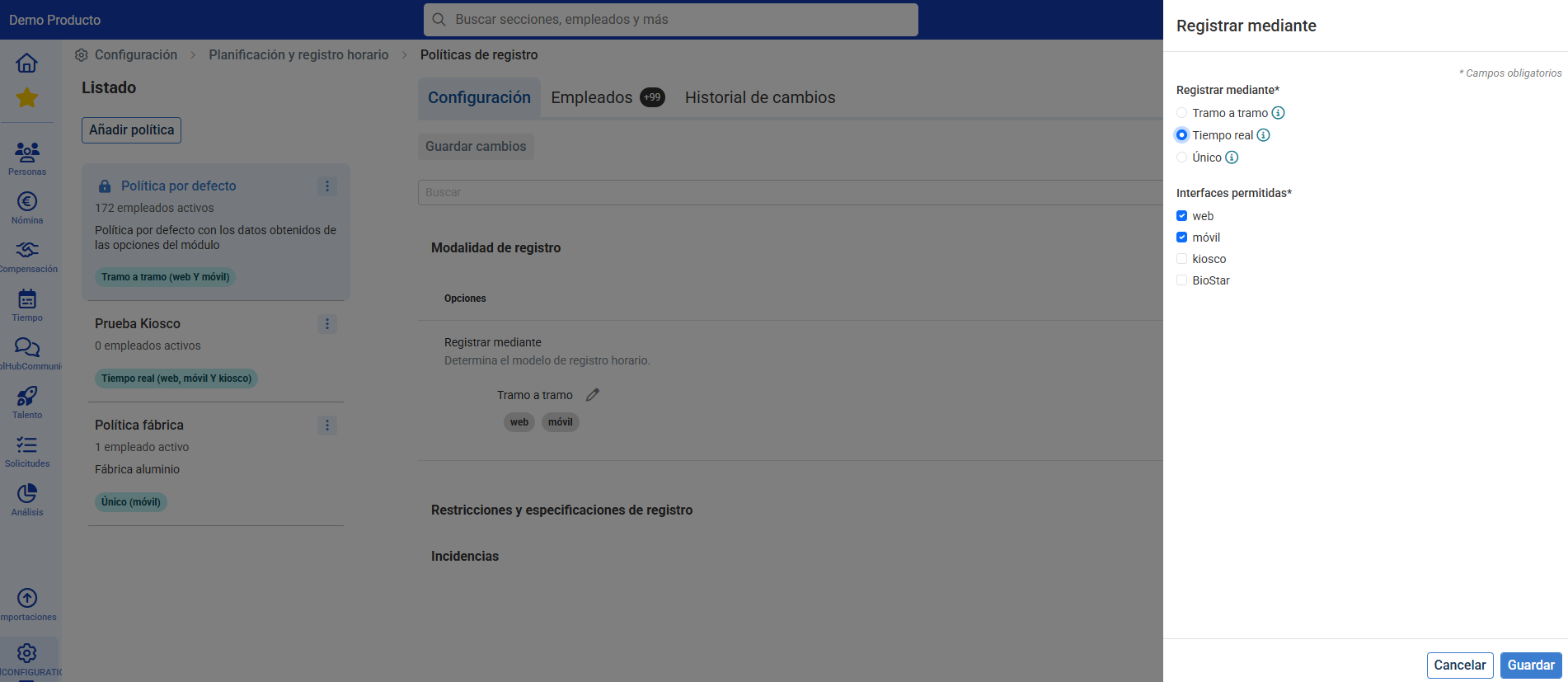
Register by (mode) (mandatory)
Click on “ℹ” to see the description for each mode.
Interfaces
Actions on each policy
In the list, next to each policy is a menu with options:
Edit
Duplicate
Delete: Before deletion, you must reassign its active employees to another policy (the "default" always appears as an option and cannot be deleted).
Configuration
Here you define all the parameters of the policy:
Registration mode
Select a mode; by clicking on the pencil:
Real-time registration
Single registration
Segment by segment registration
Registration interfaces
Depending on the chosen mode, they can be activated:
| Mode | Allowed interfaces |
|---|---|
| Segment by segment | Web, Mobile |
| Real-time | Web, Mobile, Kiosk, BioStar¹ |
| Single registration | Web, Mobile |
¹ The BioStar policy is global; it is not configured per individual policy.
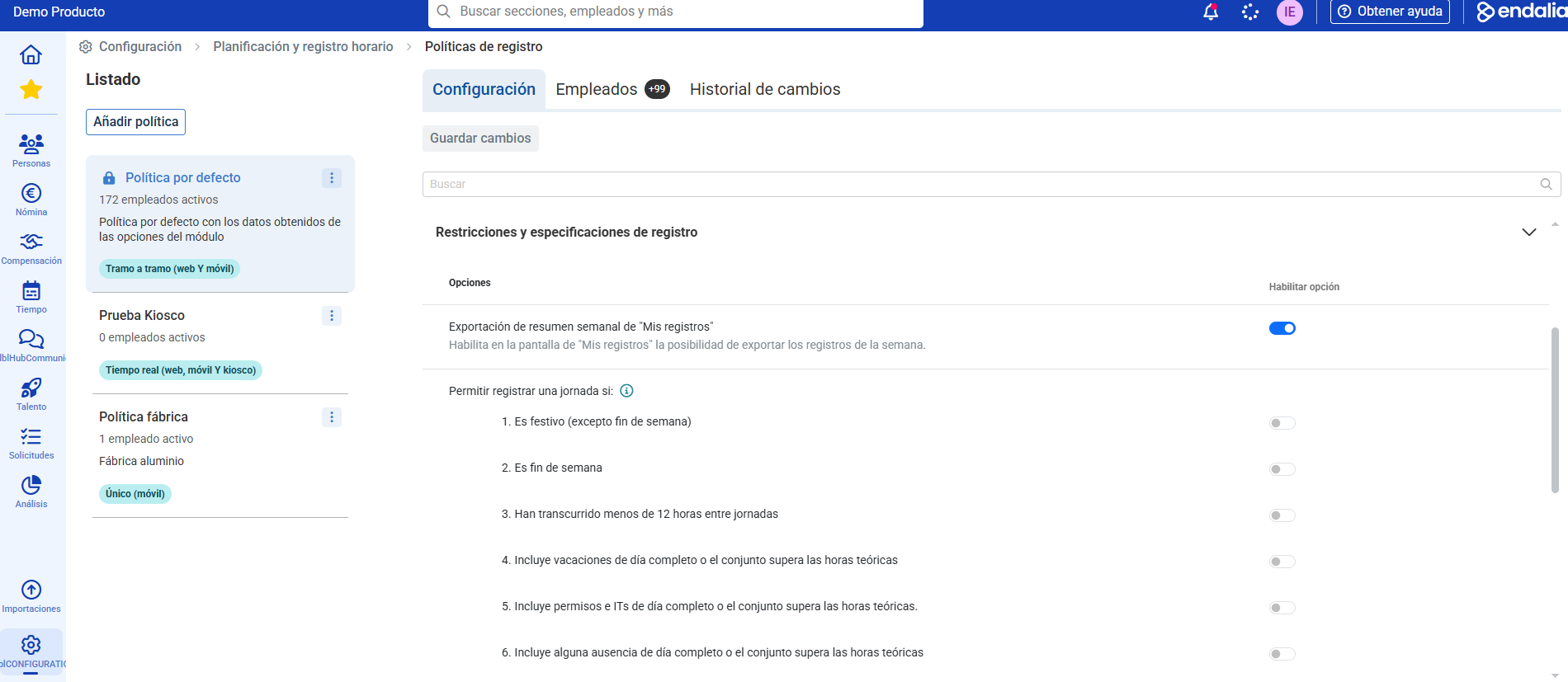
Restrictions and specifications
They are presented as a list according to mode and interface, the allowed options for restrictions and specifications.
Important: If the only interface is BioStar, non-applicable restrictions are hidden.
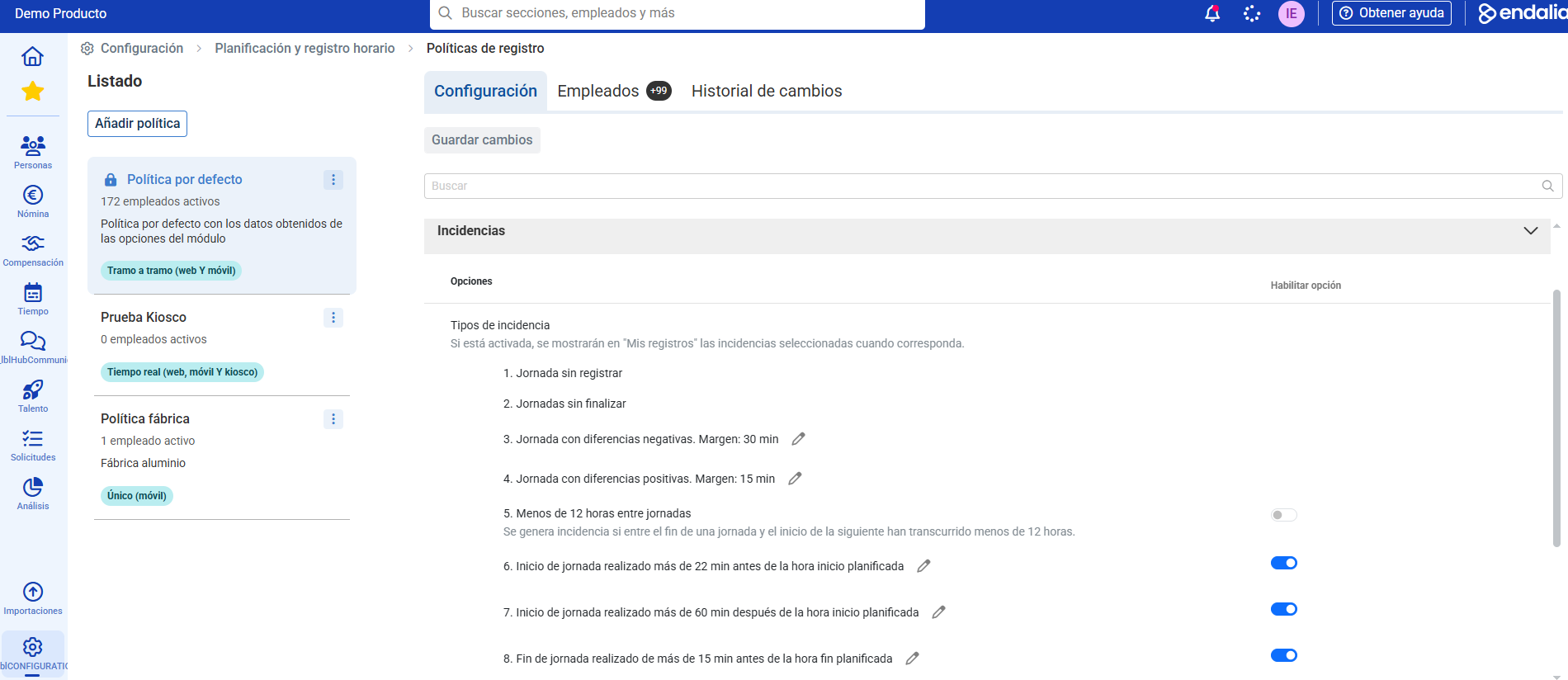
Incidents
Define what type of incidents can apply:
Employees
Manage who is subject to the policy.
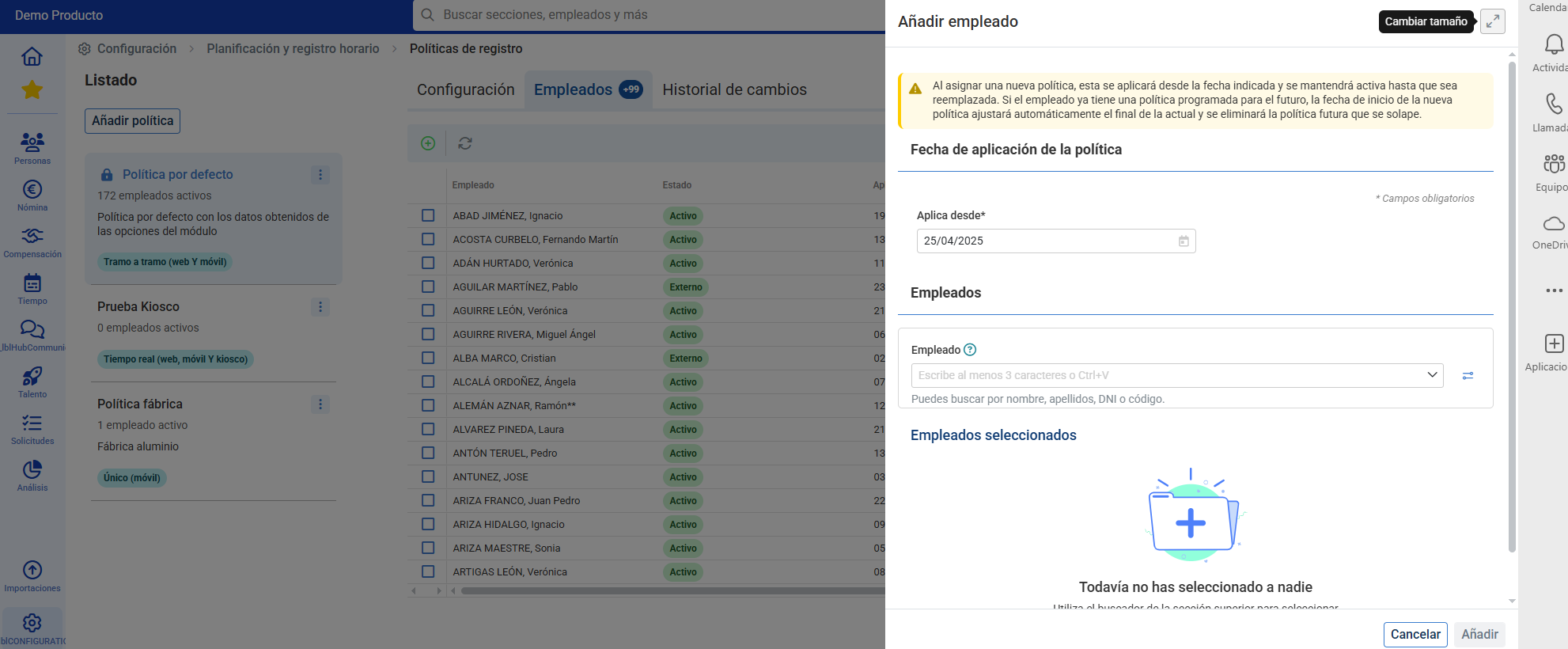
Add employees
- Add employees both individually and massively.
Move employees
Select employees and click "Move employees" to transfer them to another policy.
Their end date is updated in the current policy, and the new association is created in the future (indeterminate end date).
A tooltip indicates to which policy they will be transferred.
Cancel movement
Only available if there is a movement in progress.
Delete the end date in the current policy and erase the future entry.
Please note that:
“If you incorporate an employee already associated with another policy, they will be unlinked from their current policy and remain only associated with the new one.”
Key validations
Single active period: date overlaps are not allowed.
Continuity: there must be no "gaps" between policies.
Only future policy:
If you assign it with a future start date, remove any other future ones.
Example: an employee with Policy A until 01/06/2025 and Policy B from 02/06/2025; when assigning Policy C from 05/02/2025, Policy B disappears and the sequence is A → C.
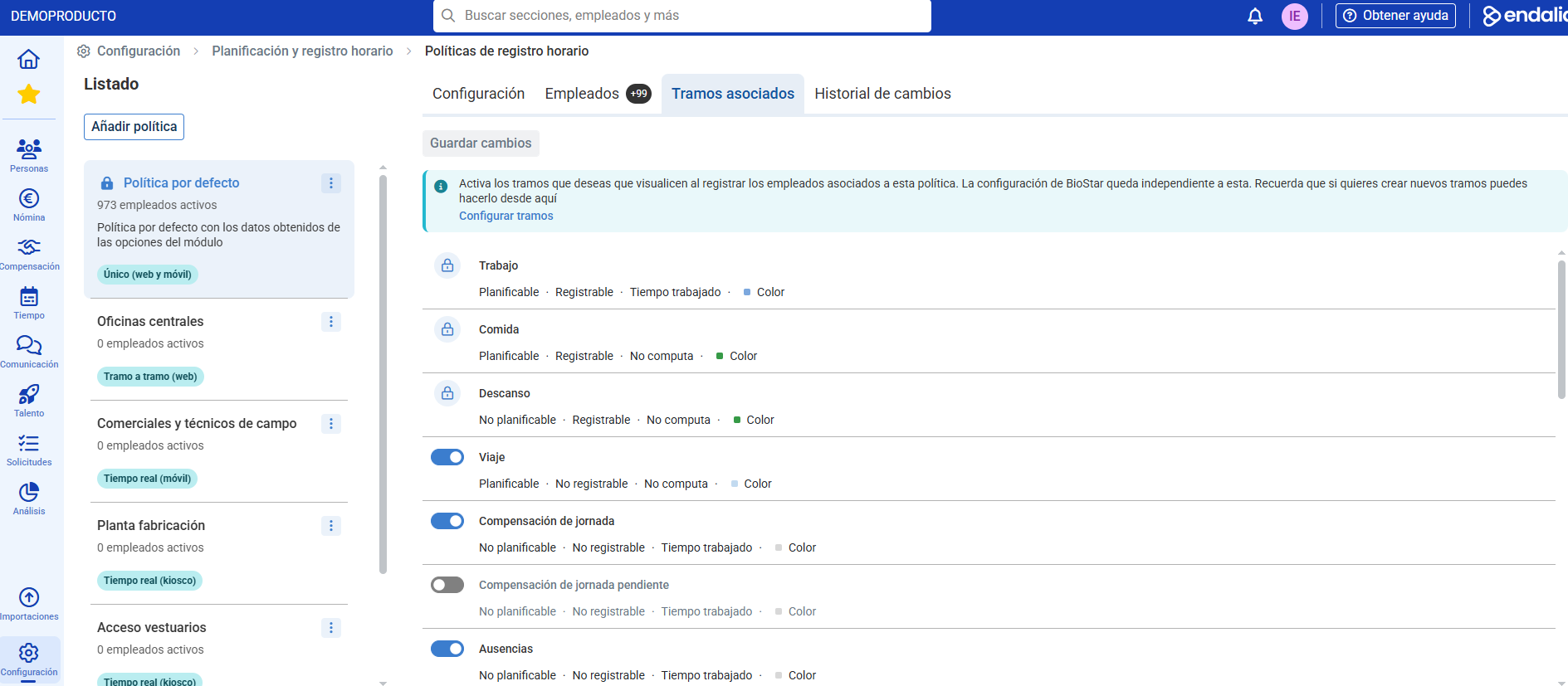
Associated segments
List of all segments created in the environment. It will be possible to activate or deactivate all desired segments that are not obligatory. To create new segments you must go to Hourly Planning:
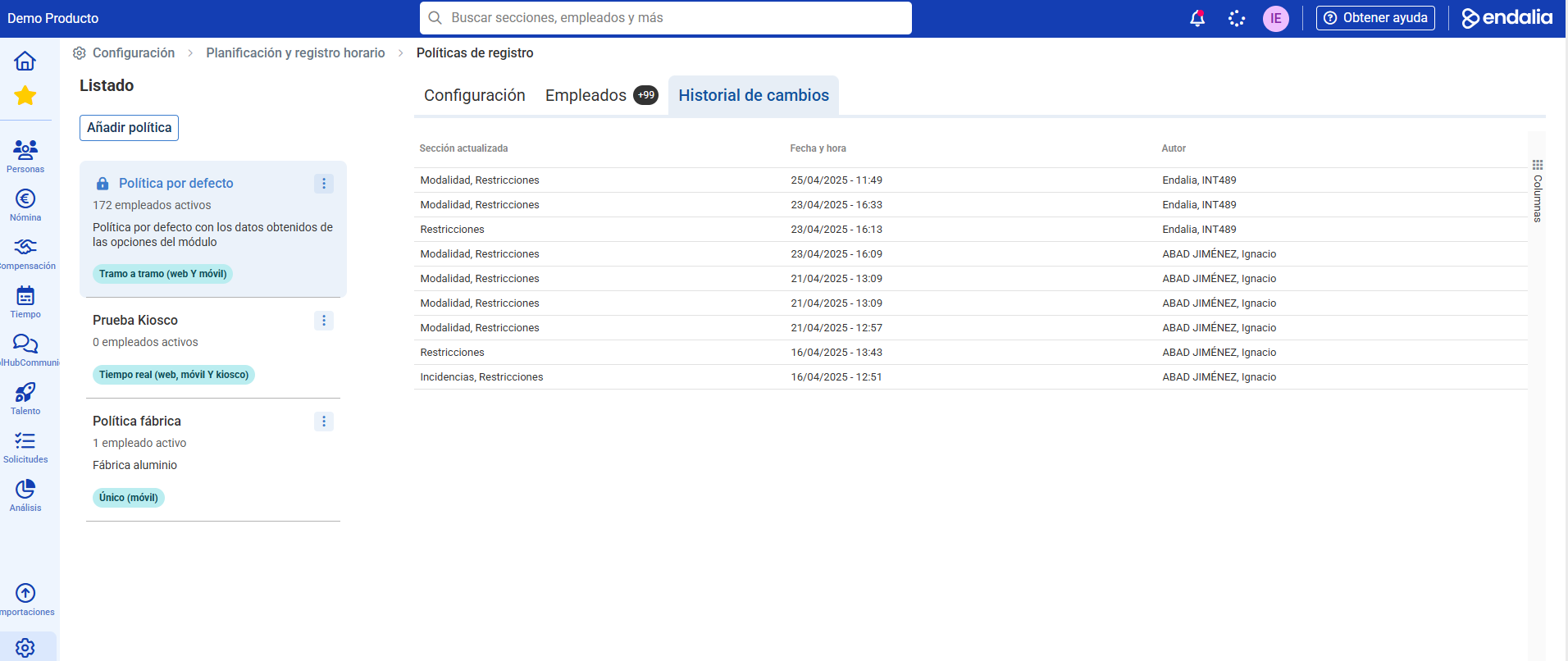
Change history
Monitor what, who, and when changes were made to the selected policy:
Start configuring your Time Registration Policies!
This tool offers you complete flexibility to define who, how, and when your employees clock in, with complete traceability of adjustments and movements. If you have doubts about the terms, take a look at our glossary at this link.
Was this article helpful?
That’s Great!
Thank you for your feedback
Sorry! We couldn't be helpful
Thank you for your feedback
Feedback sent
We appreciate your effort and will try to fix the article